How to fix
Host Process For Windows Tasks high disk or CPU usage
on Windows
Resolve high disk or CPU usage from Host Process for Windows Tasks on Windows 10 and 11. Boost performance with expert-tested solutions, fixed in minutes.


What causes How to fix Host Process For Windows Tasks high disk or CPU usage?
- Specific task or service running within the host process demanding more resources
- Temporary spike in activity
- Malfunction of a task or service
- Corrupted system files
- Incompatible software updates
Repairs Windows system files, removes malware, and restores a clean OS state — without reinstalling.
Hi. For the last few days, I have noticed that my laptop's fans are constantly whirring. After checking the Task Manager, I saw that the Host Process For Windows Tasks (taskhostw.exe) process uses 30-40% CPU at all times. Any suggestions would be welcomed.
In the complex and dynamic environment of the Windows operating system, various processes continuously run in the background to maintain system functionality and performance. These processes, often invisible to the average user, are essential for the smooth operation of the system. They perform a wide range of tasks, from managing system resources to executing user commands.
While these processes are designed to be efficient, they inevitably consume some degree of CPU and disk resources. The allocation and usage of these resources are dynamically managed by the operating system, ensuring that each process gets what it needs to function properly without overburdening the system.
However, at times, certain processes may exhibit unusually high CPU or disk usage, which can lead to performance issues. One such process is the Host Process for Windows Tasks. This process is a generic container for various system-related tasks and services, and its primary function is to act as a host for other services and tasks that do not have their own dedicated executable files. Due to this, the Host Process for Windows Tasks can be seen engaging in a wide range of activities, sometimes leading to higher than normal resource consumption.
The reasons for high CPU or disk usage by this process can vary. It might be due to a specific task or service running within the host process that is demanding more resources, possibly due to a temporary spike in activity or a malfunction. In other cases, it could be a sign of underlying system issues, such as corrupted system files or incompatible software updates.
If you notice that the Host Process for Windows Tasks is consistently using a significant portion of your system's resources, it's important to monitor the situation closely. While occasional spikes in CPU or disk usage are normal, persistent high usage might indicate a deeper issue.
Addressing the Host Process for Windows Tasks high CPU or disk usage typically involves identifying the specific service or task within the host process that is causing the high resource usage and understanding its role in the system. Once identified, steps can be taken to mitigate the impact, which may include updating software, running system checks, or other maintenance tasks. For those who prefer a more straightforward solution, using PC repair software like [d1] can be an effective way to resolve underlying Windows issues automatically.
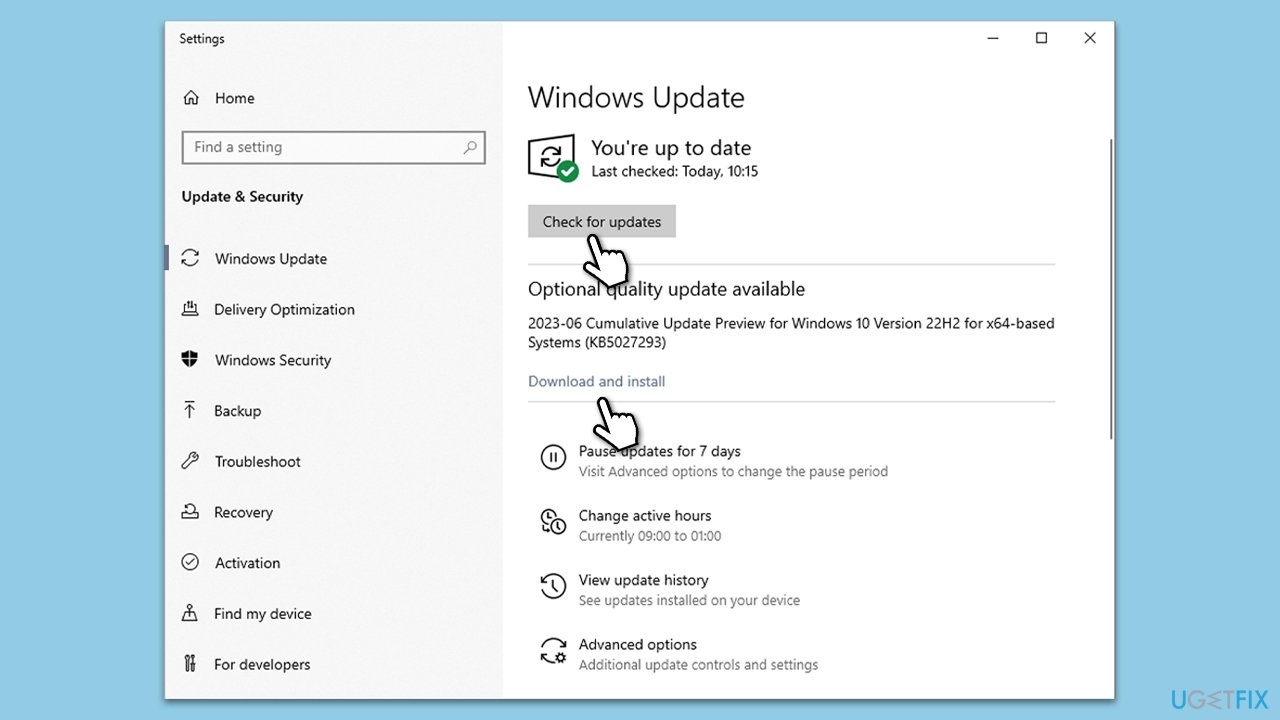
Fix 1. Update Windows
Outdated Windows versions can cause compatibility issues leading to high resource usage. Regular updates include performance improvements and bug fixes that can resolve these issues.
- Type Updates in Windows search and press Enter.
- Here, click Check for updates.
- Wait till Windows downloads and installs all the files.
- If optional updates are available, install them as well.
- Reboot your device.
Fix 2. Perform a full system scan
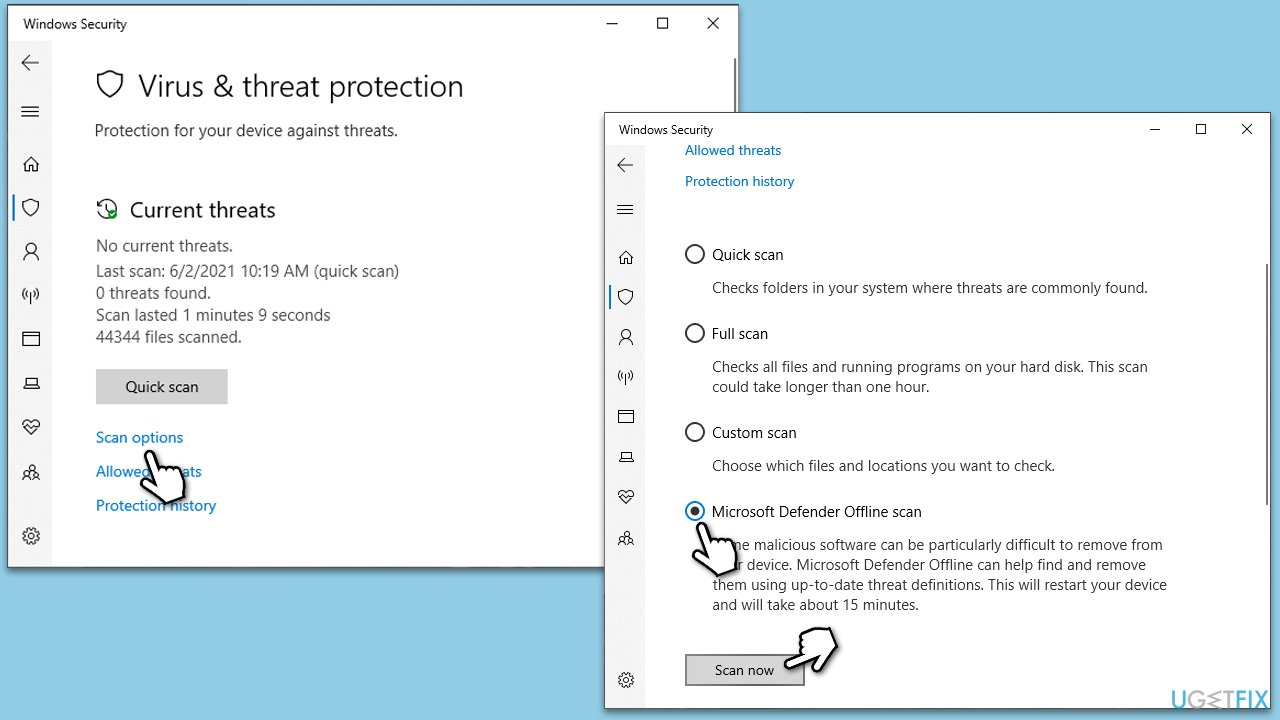
Malware or viruses can cause abnormal resource usage. Running a full system scan using your antivirus software can detect and remove these malicious programs. You can use any reputable third-party software, Microsoft Safety Scanner or the built-in Microsoft Defender:
- Type Windows Security in the Windows search bar and hit Enter.
- Select Virus & threat protection.
- Pick Scan options.
- Choose Microsoft Defender Offline scan and click Scan now.
- Your computer will immediately reboot and begin a deep scan.
Fix 3. Run System File Checker and DISM
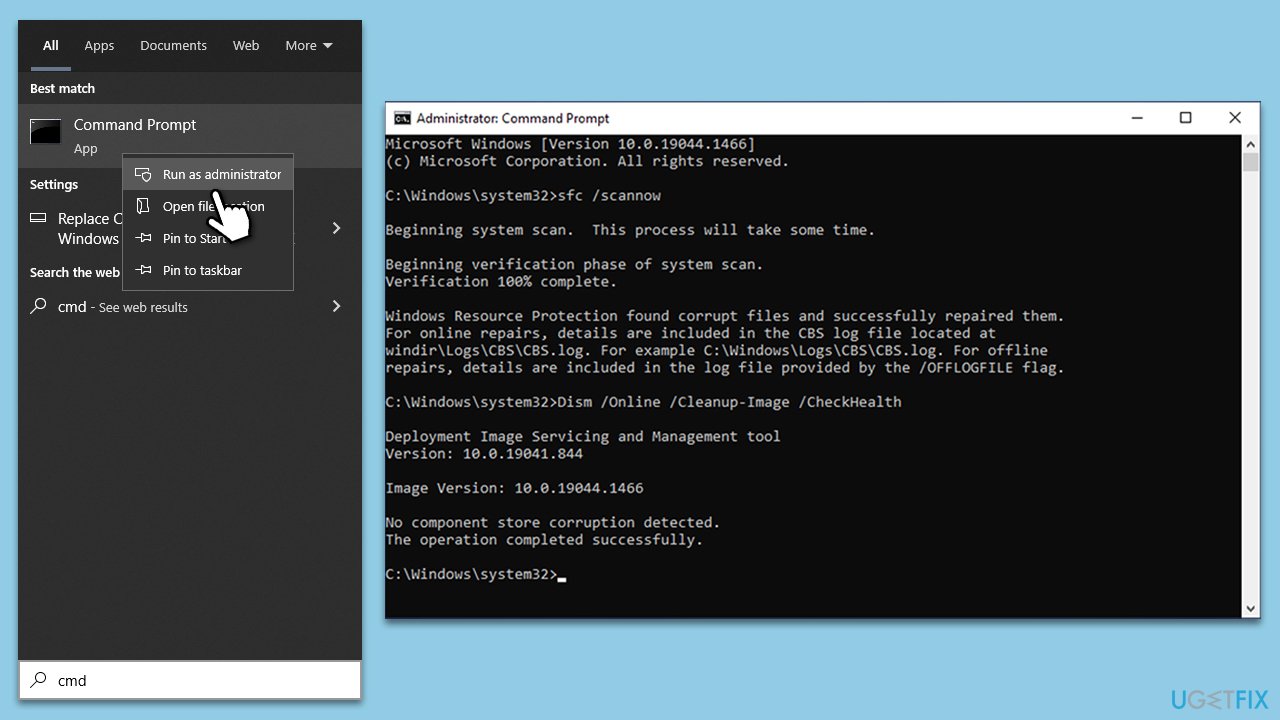
Corrupted system files can cause various issues, including high resource usage. System File Checker can repair these files and DISM can check for Windows image issues.
- Type cmd in Windows search.
- Right-click on Command Prompt and pick Run as administrator.
- User Account Control window will show up - click Yes when prompted.
- Then, copy and paste the following command, pressing Enter after:
sfc /scannow - Wait till the scan is finished. If Windows finds system file integrity violations, it will attempt to fix them. After this, use the set of the following commands, pressing Enter each time:
DISM /Online /Cleanup-Image /CheckHealth
DISM /Online /Cleanup-Image /ScanHealth
DISM /Online /Cleanup-Image /RestoreHealth - Close down the Command Prompt and restart your system.
Fix 4. Adjust Windows for best performance
Changing system settings to optimize for performance can reduce resource usage.
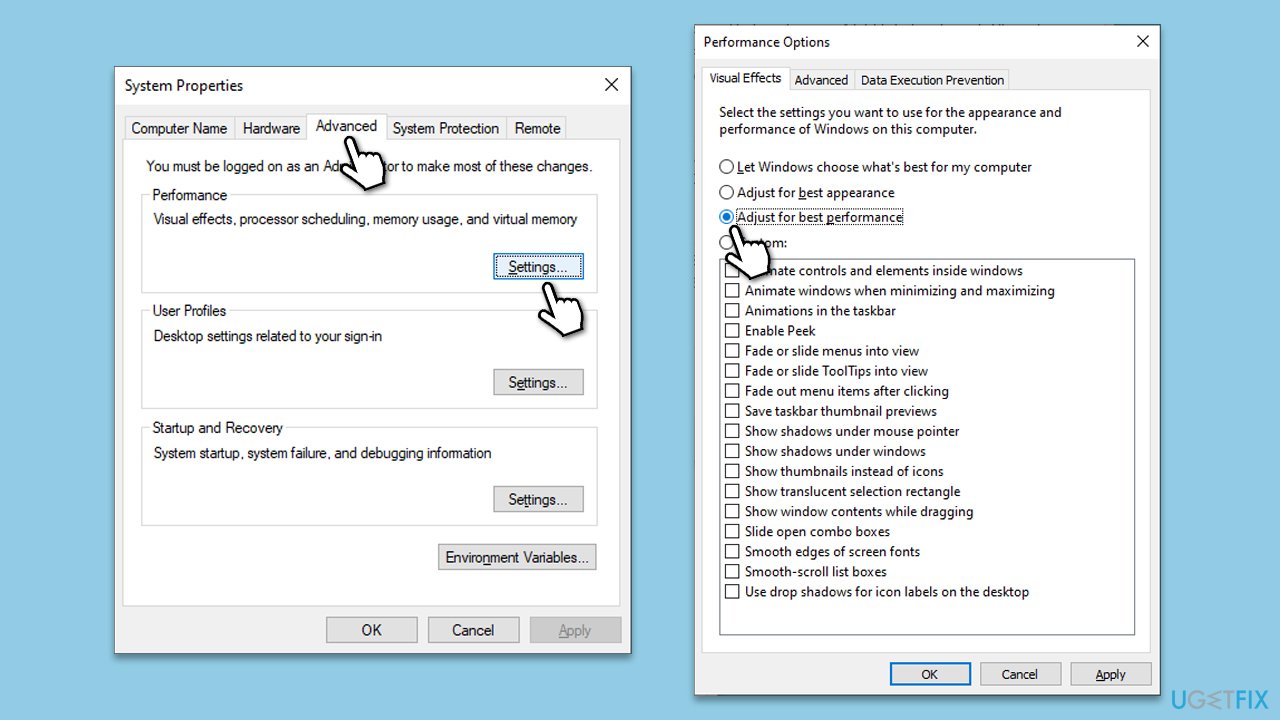
- Right-click on the Start button and select System from the menu.
- Scroll down in the right pane and click Advanced system settings.
- Click on the Advanced tab.
- In the Performance section, click Settings.
- Navigate to the Visual Effects tab.
- Choose the Adjust for best performance option.
- Click on Apply and then OK to save the changes.
Fix 5. Perform Disk Cleanup
Freeing up disk space can improve system performance and reduce disk usage.
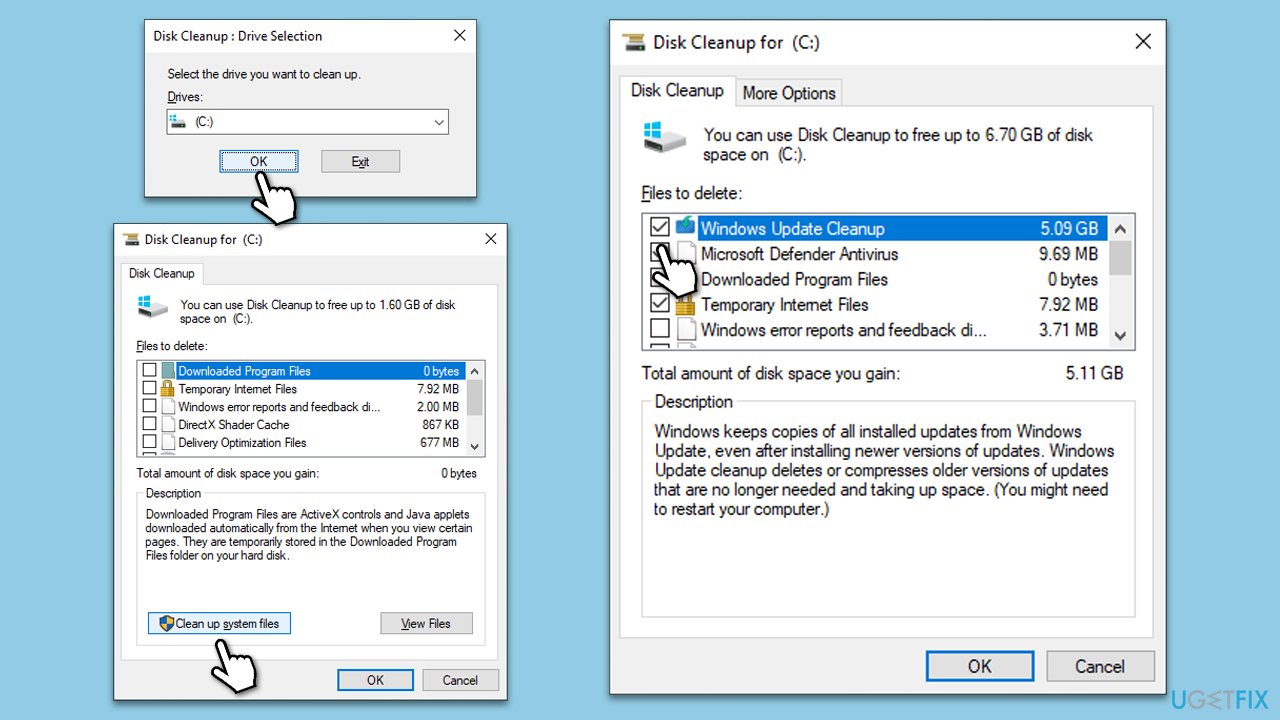
- Type Disk Cleanup in Windows search and hit Enter.
- If your Windows is installed on drive C, pick it from the list (it should be by default) and press OK.
- Click Clean up system files.
- Select your main disk again and click OK.
- Here, select the largest portions of the data used - these typically include Temporary Internet Files, Windows Update, Temporary Files, Recycle Bin, Delivery Optimization Files, and others.
- Click OK - the process should be finished shortly.
Fix 6. Run Clean Boot
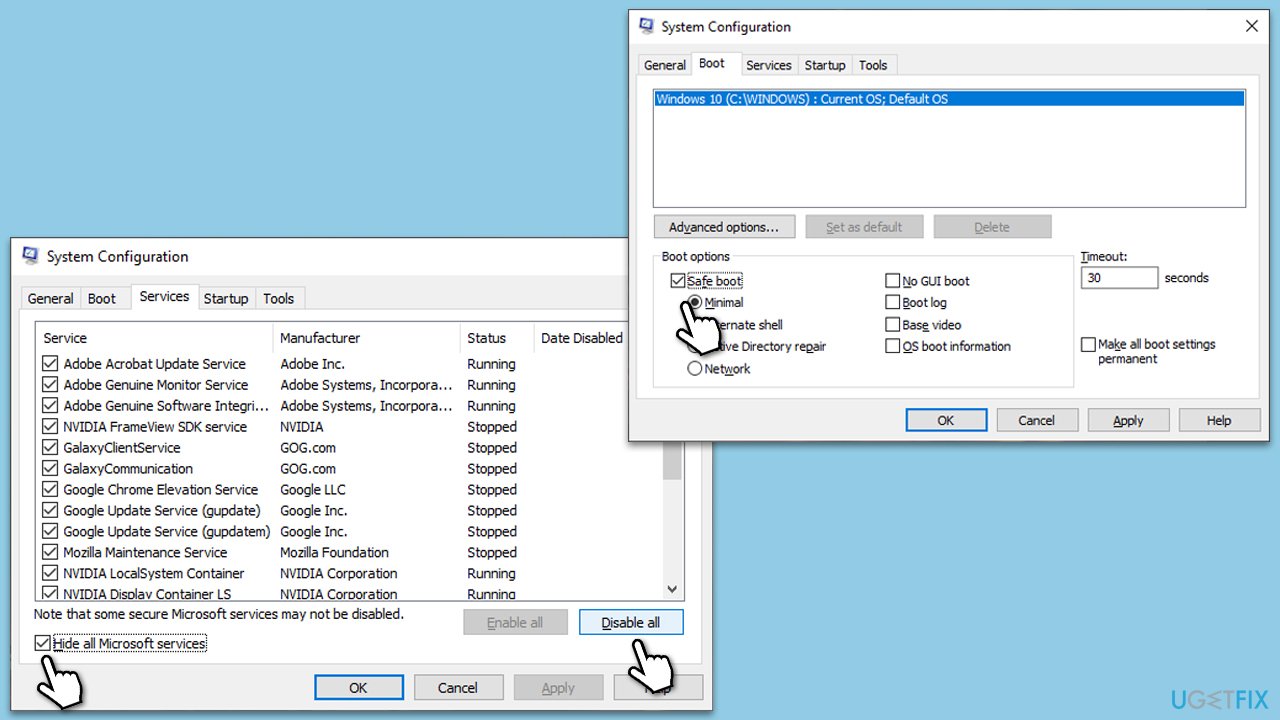
- Press the Win + R to open the Run dialog.
- Type msconfig and press Enter.
- In the System Configuration window, select Selective Startup, and uncheck Load startup items.
- Go to the Services tab and check the box Hide all Microsoft services, then click Disable all.
- Click on the Startup tab and open Task Manager.
- Disable all the startup items in the Task Manager.
- Click OK, and restart the computer.
Once in the clean boot state:
- Return to the System Configuration (msconfig) and start enabling half of the services.
- Restart your computer.
- If the problem persists, it means one of the enabled services is the culprit. Disable half of these services and restart.
- Continue this process until you isolate the problematic service or application. Once identified, you can decide to uninstall, update, or disable the specific service or application causing the issue.
Fix 7. Reset Windows
If all else fails, resetting Windows can resolve persistent issues by reinstalling the operating system while keeping your personal files.
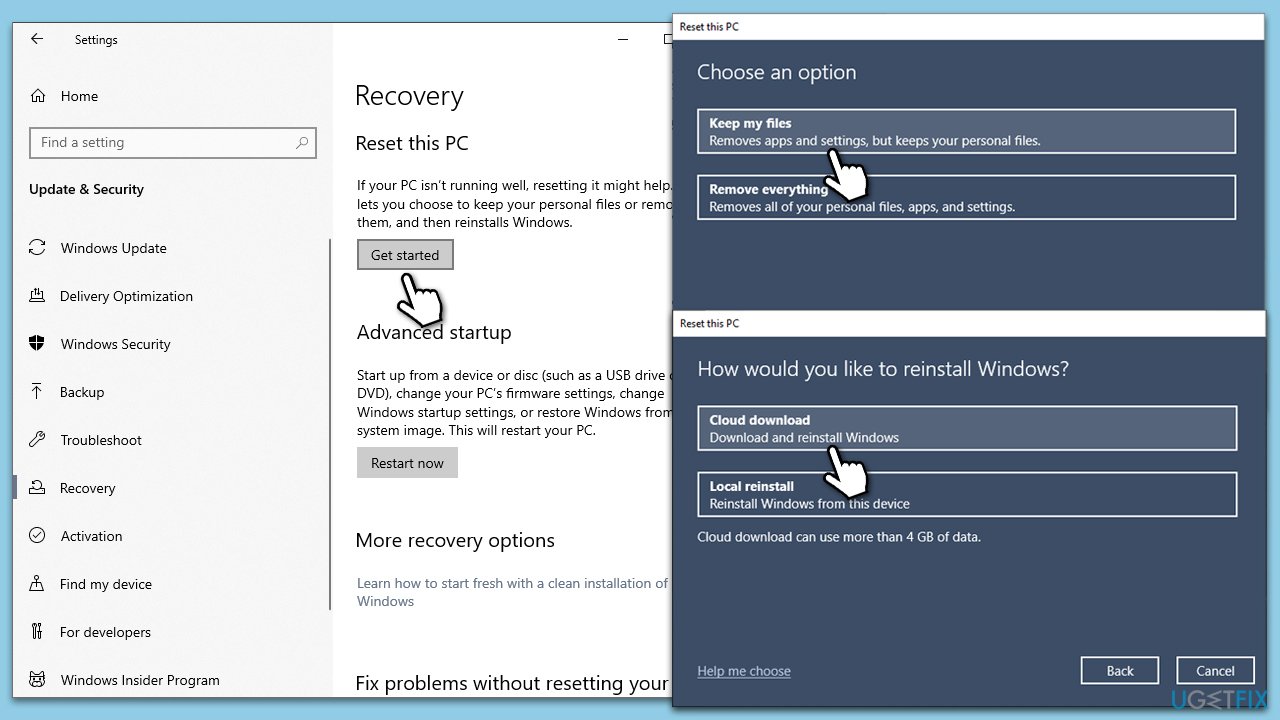
- Right-click on Start and then select Settings.
- Go to Update & Security and pick Recovery on the left side of the window.
- Find Reset this PC section and click Get Started.
- Select Keep my files and Cloud download.
- Next, pick whether you want to reinstall the apps.
- Click Reset.
- Your system will restart, and the process of Windows reset will begin.
Bottom line
To address high CPU or disk usage by the Host Process for Windows Tasks, consider monitoring the processes running within it, checking for corrupted system files, and ensuring all software updates are compatible. If these steps do not resolve the issue, further investigation into system performance may be necessary.
Frequently asked questions
High disk or CPU usage by Host Process For Windows Tasks can be caused by background services, software conflicts, or outdated drivers in Windows 10.
To reduce high CPU usage, try disabling unnecessary startup programs and updating your system drivers in Windows 11.
Ending Host Process For Windows Tasks may temporarily reduce resource usage, but it's generally not recommended as it can disrupt system processes in Windows 10.




Report an issue
What's wrong with this guide? We review every report and update or remove content.
Report received — thank you. We'll review and fix it.
You need a free account to submit a report.
Be the first to comment