How to fix
New CPU installed, fTPM/PSP NV corrupted or fTPM/PSP NV structure changed
on Windows
Resolve fTPM/PSP NV issues after your new CPU installation on Windows 10 or 11 with our expert tips. Quick fixes, zero traces left!


What causes How to fix new CPU installed, fTPM/PSP NV corrupted or fTPM/PSP NV structure changed?
- New CPU installed
- fTPM NV corrupted
- fTPM NV structure changed
- Bitlocker or encryption enabled
- Unexpected reboot after inactivity
Repairs Windows system files, removes malware, and restores a clean OS state — without reinstalling.
Hi. I don't usually turn off my PC when I go away from it. Once I came back, the screen was blank as per usual. I tried to turn the PC on, but nothing happened, so I hard-rebooted it. As soon as it started loading, I received a "New CPU installed. fTPM NV corrupted or fTPM NV structure changed" error on the black screen. I pressed N to keep the previous setting (which seemed logical to me), but Windows failed to boot, and I received the same error. Please help.
fTPM NV structure corrupted or changed error usually affects Windows 10 desktops or laptops that use TPM - Trusted Platform Module. TPM is a secure cryptoprocessor with the sole purpose of securing hardware. Its integrated cryptographic keys[ref en-3] can be used to encrypt anything from installing new programs, changing settings in your BIOS/UEFI, or even logging into Windows systems.
There are five types of TPM implementations,[ref en-1] including Discrete (dTPM), Software (sTPM), Integrated (iTPM), Hypervisor (hTPM) and Firmware (fTPM), which seems to be the problem here. Firmware TPM (commonly used by AMD, Intel, and Qualcomm) runs in the CPU environment and is software-only-based.
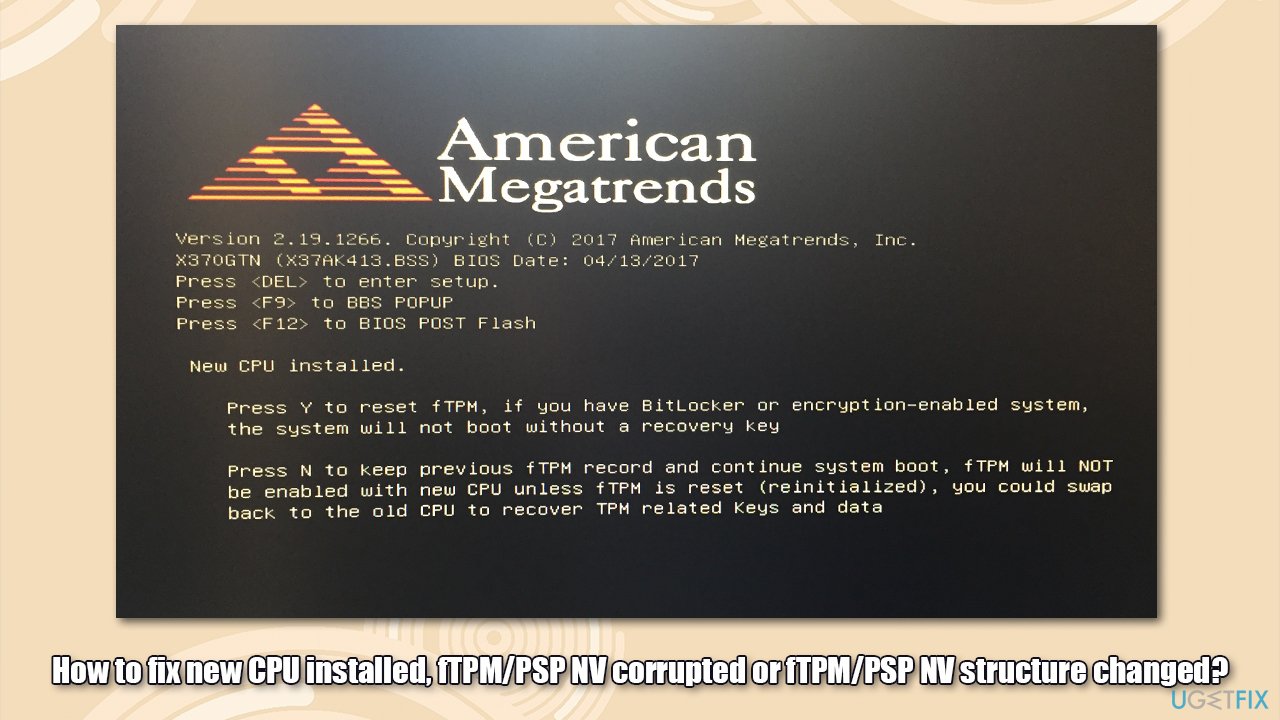
The issue seems to occur seemingly out of nowhere - users reported that they simply went away from their computers for some time, and, after they came back, they saw the black screen fTPM NV error. The full error message reads as follows:
New CPU installed. fTPM NV corrupted or fTPM NV structure changed.
Press Y to reset fTPM. If you have Bitlocker or encryption enabled, the system will not boot without a recovery key.
Press N to keep previous fTPM record and continue system boot. fTPM will not enable in new CPU, you can swap back to the old CPU to recover TPM related keys and data
In most cases, users choose to go with an N option, especially if they received the error unexpectedly. Once the loading sequence continues, they are then prompted to enter their PIN, and this is where they encounter a problem again. As soon as the device is rebooted, users see the same error and are not able to continue using their computers normally.
In other cases, users themselves enabled the fTPM feature via BIOS to run Windows 11. In this case scenario, they are able to boot into Windows after pressing any button, although the message returns each time they load their device - this is because BIOS[ref en-2] sees it as a new CPU every time the PC is booted.
In both cases, it is possible to fix the problem. If you keep getting issues with your Windows device, we recommend you try running a PC repair tool [d1], as it is capable of remediating corrupted registries, remove malware, and replace damaged system files with brand new ones.
1. Check whether you are using BitLocker
BitLocker is a built-in Windows feature that allows users to encrypt their data and protect it from unauthorized access. You should first check whether your system has it enabled:
If you can log into Windows:
In order to access Windows, simply press N in the error screen.
- Type cmd in Windows search
- Right-click on Command Prompt and select Run as administrator
- When User Account Control shows up, click Yes
- Once in the new window, paste the following command:
manage-bde -status - Hit Enter
- Check the Conversion Status and Percentage Encrypted lines - these should hint whether you are using BitLocker.
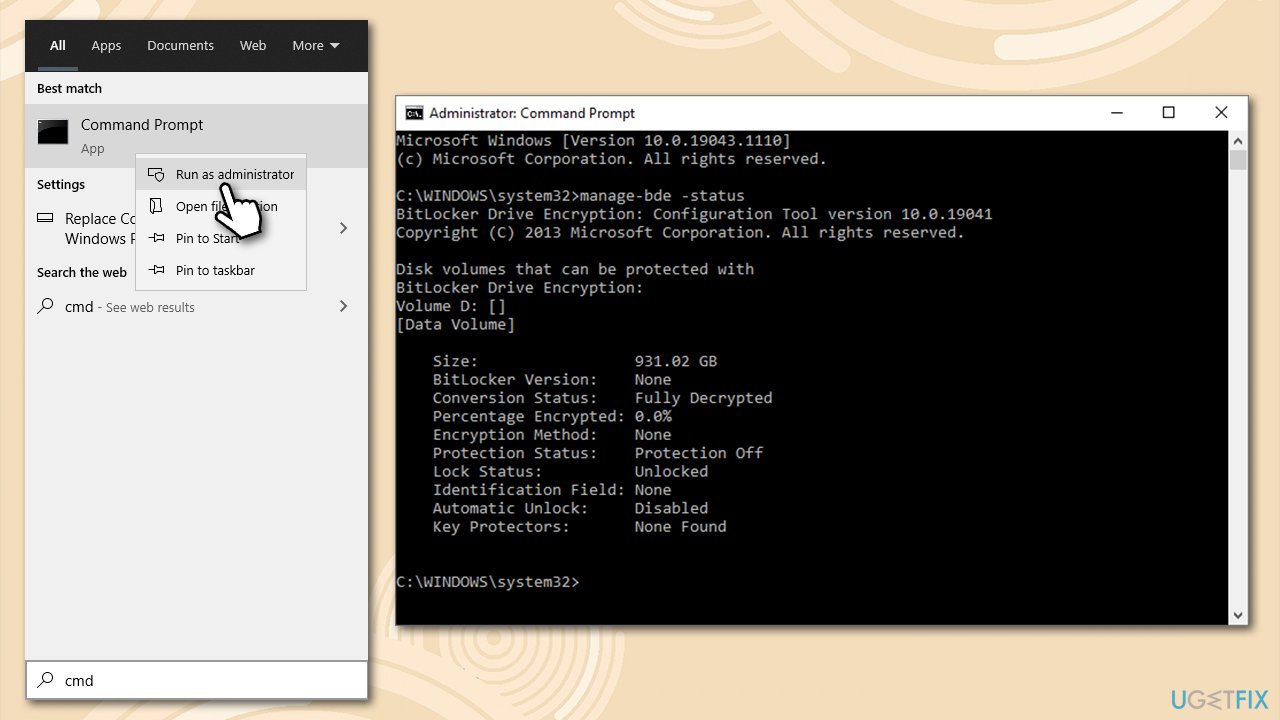
How to fix new cpu installed ftpm psp nv corrupted or ftpm psp nv structure changed check via command prompt for bitlocker
If you can't log into Windows:
- Restart your computer and interrupt booting sequence three times by pressing and holding Power button each time
- Once in Advanced Startup mode, go to Troubleshoot > Advanced options
- Select Command Prompt
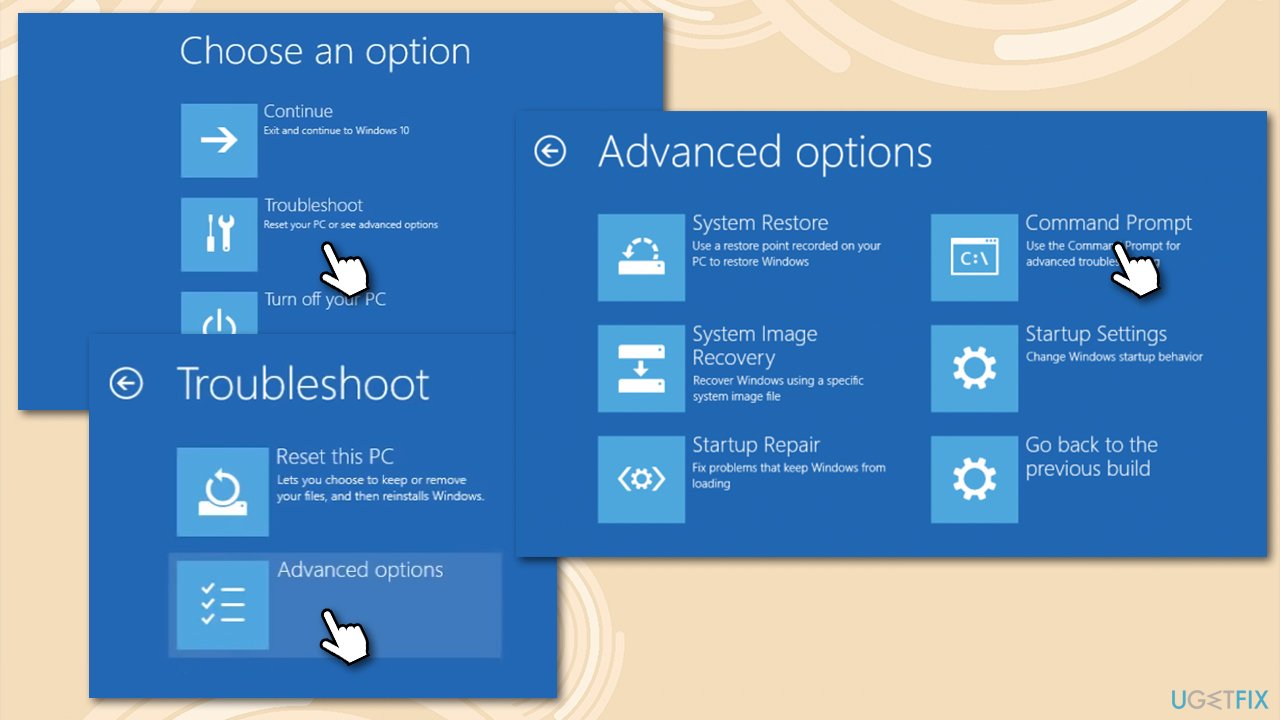
How to fix new cpu installed ftpm psp nv corrupted or ftpm psp nv structure changed access recovery mode - Now run the command manage-bde -status command via Command Prompt.
If your system is not encrypted, you can reboot it and press Y when prompted. If your system was encrypted, proceed with the next step.
2. Get your BitLocker key
If your system was using BitLocker, you would need a recovery key. The easiest way to get it is by accessing your Microsoft Account > BitLocker Recovery key section on a working computer.
If this option is not available for you, you can also try using the following methods:
- Finding the .txt file on your computer (it was created when you were setting up the encryption) - search for BitLocker Recovery Key.txt file on your PC
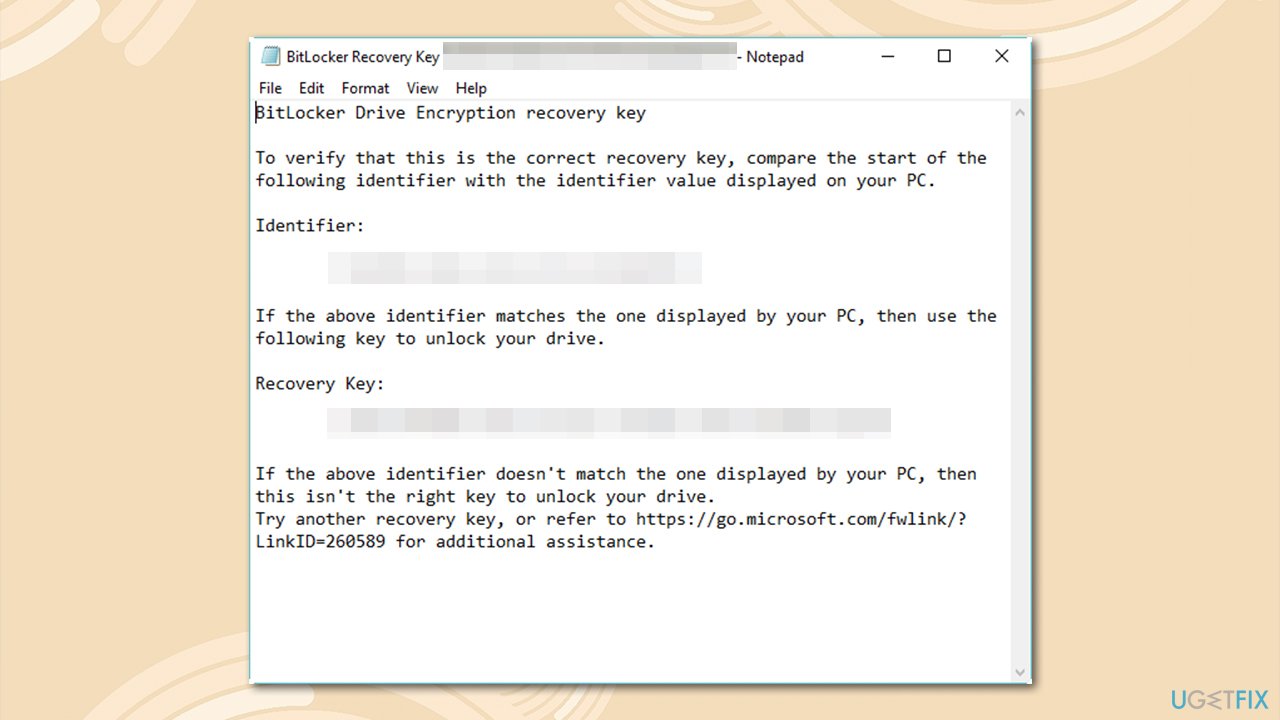
How to fix new cpu installed ftpm psp nv corrupted or ftpm psp nv structure changed find bitlocker text file - On a printout which was saved when BitLocker was activated
- If you used the computer to sign in to your work or school account via Azure Active Directory, the key can be found in Azure AD account.
3. Disable fTPM feature via BIOS
If you can log on to Windows but you keep receiving the message, you can try turning off the fTPM feature via BIOS.
- Access BIOS by pressing F8, F10, F12, Del, Esc or another button when the system is booting (refer to your laptop or motherboard manufacturer for precise instructions)
- Once inside, go to Advanced Settings/CPU configuration section
- Look for sections like Security Device Support or simply fTPM
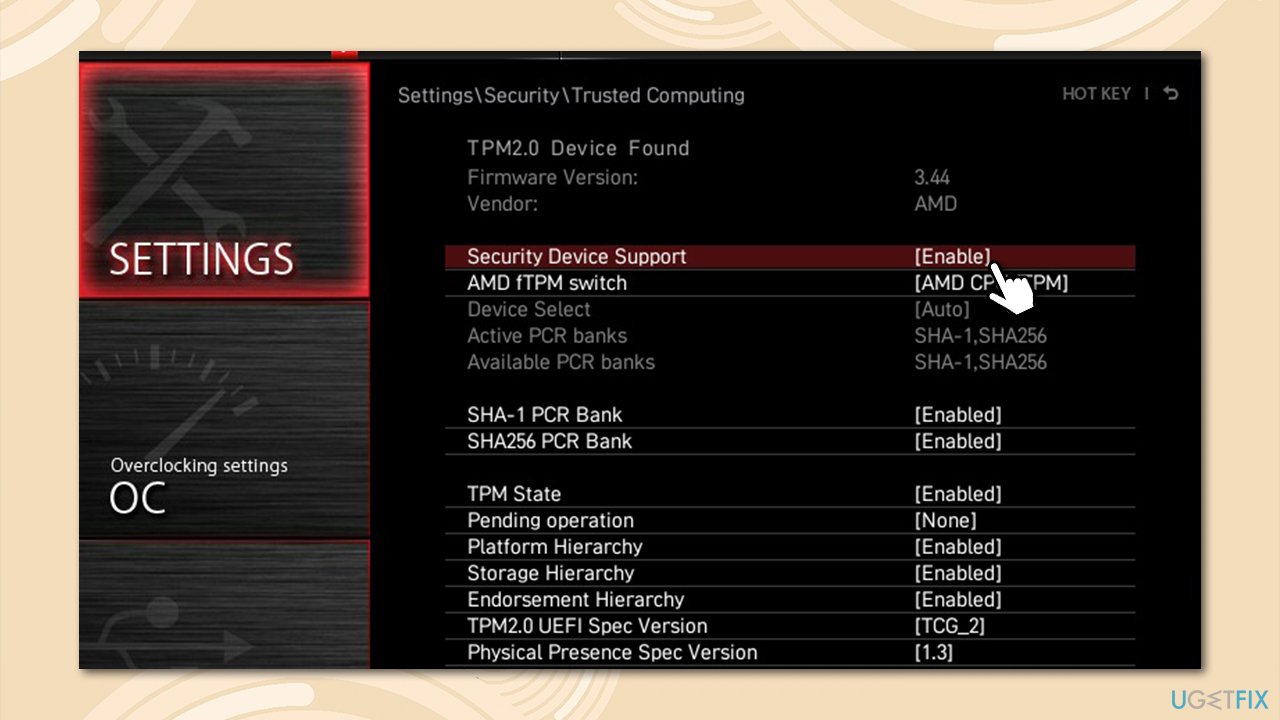
How to fix new cpu installed ftpm psp nv corrupted or ftpm psp nv structure changed disable ftpm via bios - Make sure the option is turned off and restart your PC.
Bottom line
To resolve the fTPM NV error, you can try resetting the fTPM by pressing Y, or swap back to the old CPU to recover TPM-related keys and data. If you have Bitlocker enabled, ensure you have the recovery key available. If none of these solutions work, further troubleshooting may be necessary.
Frequently asked questions
Try resetting the TPM by going to 'Windows Security' > 'Device security' > 'Security processor details' and selecting 'Clear TPM'. After clearing, reboot your system and check if the issue persists.
You can resolve this by accessing the BIOS/UEFI settings, ensuring that fTPM is enabled, and then resetting the TPM from Windows Security.
Yes, you can check the status of the TPM by navigating to 'Windows Security' > 'Device security' > 'Security processor', where it should indicate whether the TPM is working correctly.




Report an issue
What's wrong with this guide? We review every report and update or remove content.
Report received — thank you. We'll review and fix it.
You need a free account to submit a report.
Be the first to comment