How to fix
Logitech keyboard backlight not working
on Windows
Resolve your Logitech keyboard backlight issues on Windows 10 or 11 quickly and effectively. Expert-tested solutions guaranteed to fix it in minutes!

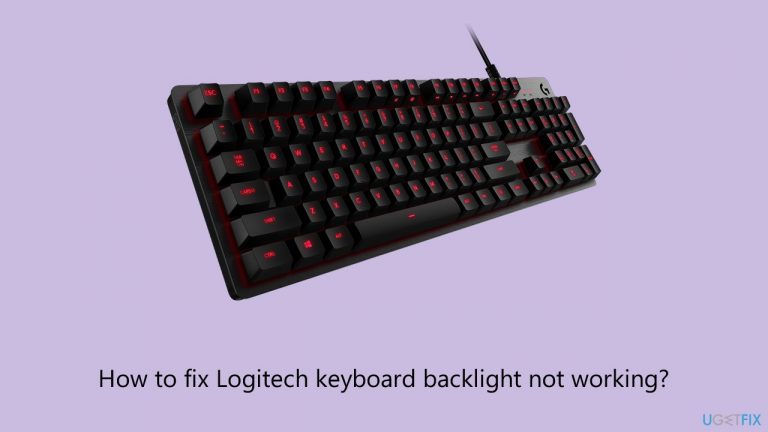
What causes How to fix Logitech keyboard backlight not working?
- Outdated keyboard drivers
- Incompatible keyboard drivers
- Disabled backlight feature
- Outdated firmware
- Hardware issues
Repairs Windows system files, removes malware, and restores a clean OS state — without reinstalling.
Hi, I have a problem with my Logitech keyboard - the backlight is not working for me. Everything was fine until last week when I tried to turn this feature on and soon realized it does not work anymore. Any tips for me would be appreciated.
Keyboards are indispensable input devices for computers and laptops, facilitating efficient communication with the digital world. Logitech, a prominent player in the computing industry, offers a range of keyboard models appreciated for their functionality and design - they have become increasingly popular within the gaming sphere as well.
However, some users have reported encountering a frustrating issue: the Logitech keyboard backlight not working. This problem has been observed across various keyboard models, including the K845 and G915 series.
The backlight on Logitech keyboards serves a crucial purpose, particularly in low-light conditions. It allows users to see the keys clearly, enhancing typing accuracy and convenience. When the backlight fails to function as expected, it can hinder productivity and cause frustration.
Several factors could contribute to this issue. To resolve it, you can undertake the following steps:
- Run the troubleshooter: Start by running the built-in Windows troubleshooter for hardware and devices. This tool can automatically detect and address issues with your keyboard's backlight.
- Update drivers: Outdated or incompatible keyboard drivers can lead to backlight problems. Ensure that you have the latest Logitech keyboard drivers installed on your system.
- Enable backlight via shortcut: Logitech keyboards often have shortcuts to enable or disable the backlight. Refer to your keyboard's manual or online resources to identify the correct key combination.
- Firmware update: Check if there are any firmware updates available for your Logitech keyboard. Keeping the firmware up to date can resolve compatibility issues.
Remember to perform these actions carefully, as misconfigurations could lead to further problems. If you're uncomfortable troubleshooting on your own, consider seeking professional assistance or consulting Logitech's official support resources.
For a comprehensive solution to various underlying Windows issues, you may also consider using a PC repair tool like [d1]. This tool can automatically diagnose and fix a range of system-related problems, ensuring that your operating system functions optimally. Otherwise, you can find the troubleshooting steps below.
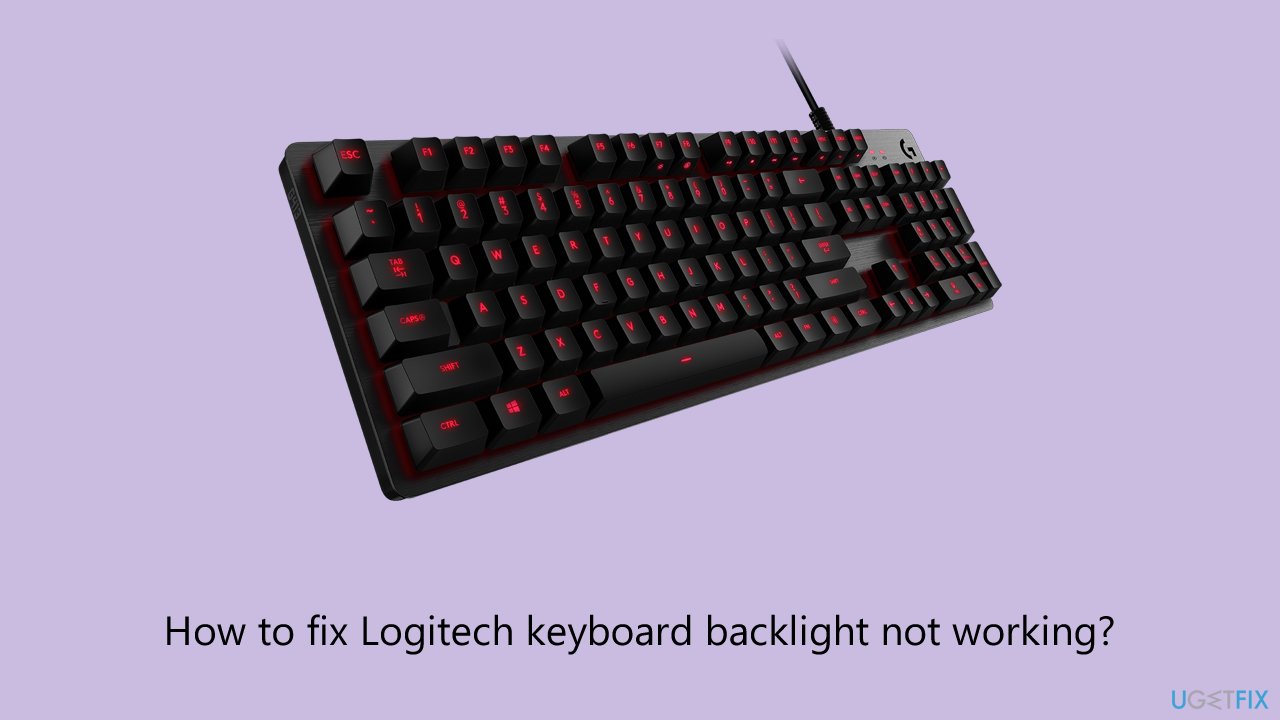
Why does my Logitech keyboard turn the backlight off by itself?
Before proceeding to more advanced troubleshooting steps, there are a few things you should be aware of. Your Logitech keyboard might disable backlight under the following conditions:
- Your keyboard might not have a backlight feature. Refer to the user manual of the keyboard or visit the official Logitech website to find out.
- If your keyboard battery is low (10% and below) - so make sure your keyboard has charged batteries.
- If your environment is too bright. The keyboard will automatically turn off the backlight if you are using it in a brightly lit room, one that exceeds 200 lux.
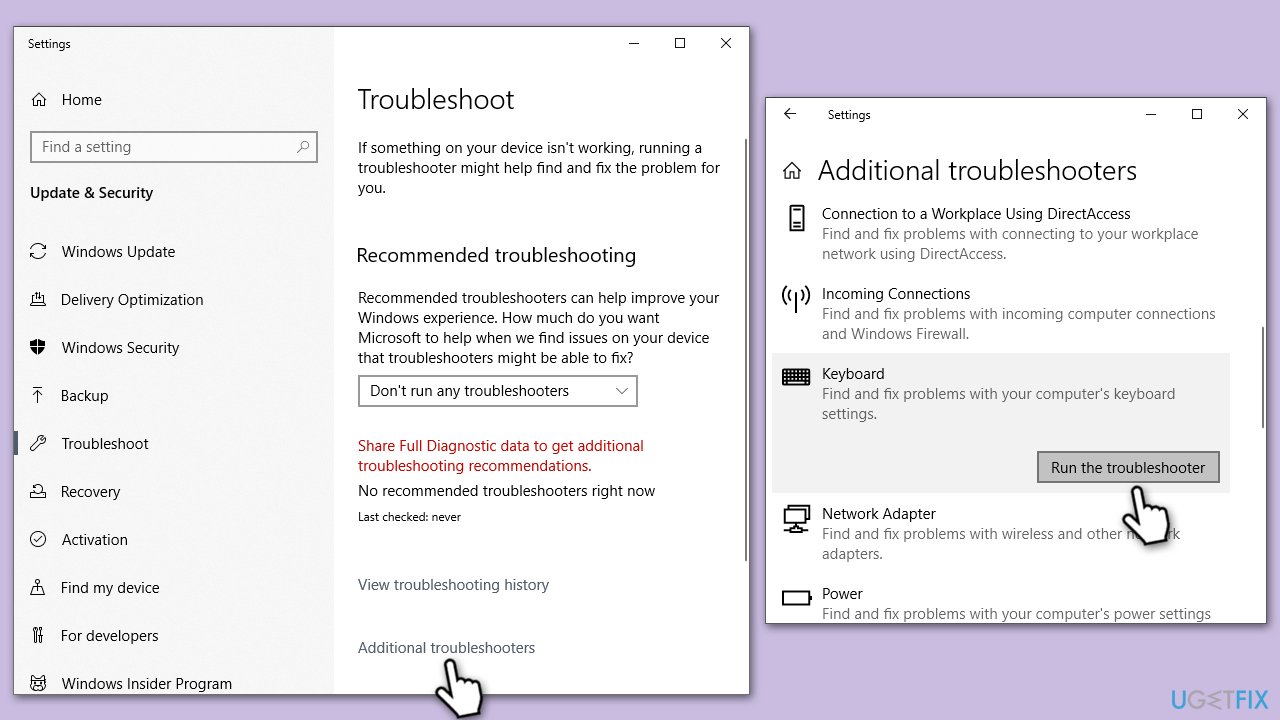
Fix 1. Run keyboard troubleshooter
The Keyboard troubleshooter is a diagnostic tool in Windows that helps identify and fix issues with your keyboard, including backlight problems. Follow these steps to use it:
- Type troubleshoot in Windows search and press Enter.
- Select Other troubleshooter/Additional troubleshooter find and select Keyboard.
- Click on Run/Run the troubleshooter.
- Follow the on-screen instructions provided by the troubleshooter as it scans your system for keyboard-related issues and attempts to resolve them.
Fix 2. Run hardware and devices troubleshooter
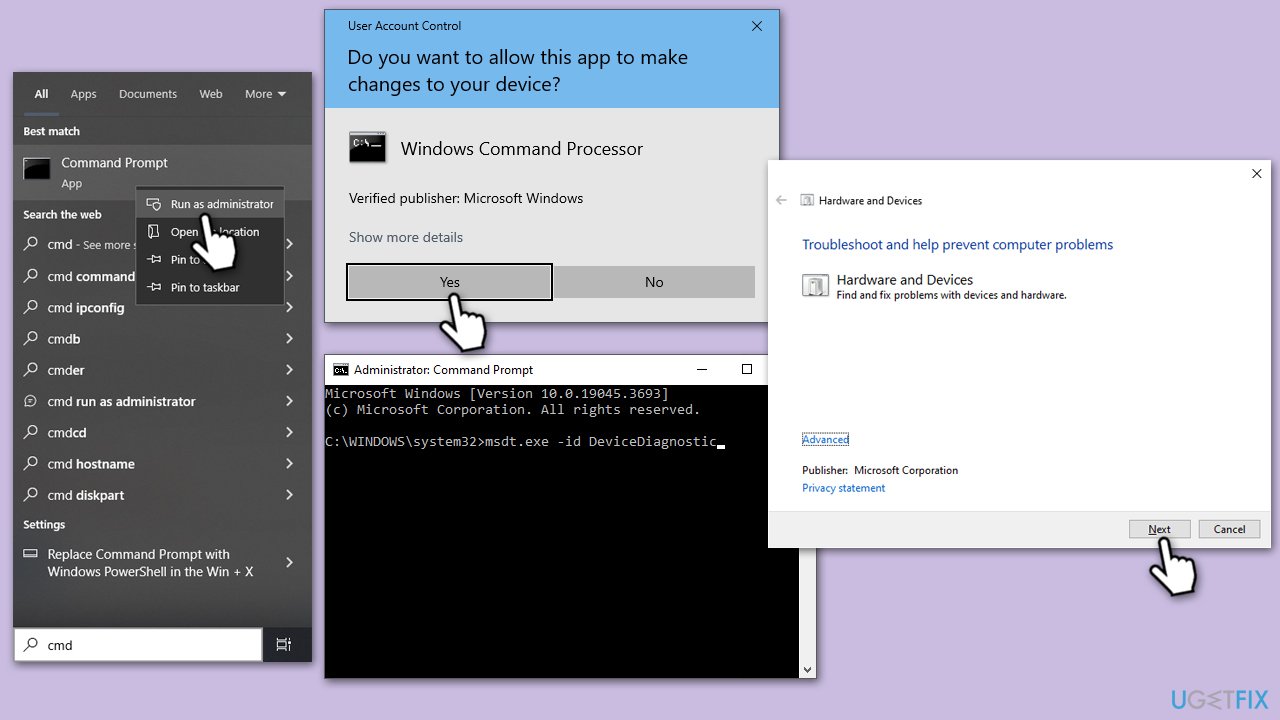
The hardware and devices troubleshooter in Windows is designed to detect and repair problems related to hardware, including your keyboard. Here's how to run it:
- Type cmd in Windows search.
- Right-click on the Command Prompt result and pick Run as administrator.
- When the User Account Control window shows up, click Yes.
- Copy and paste the following command, pressing Enter after:
msdt.exe -id DeviceDiagnostic - Follow on-screen instructions to run the troubleshooter and apply the suggested fixes.
- Restart your system.
Fix 3. Update keyboard drivers
Outdated or incompatible keyboard drivers can lead to backlight problems. To update your keyboard drivers, follow these steps:
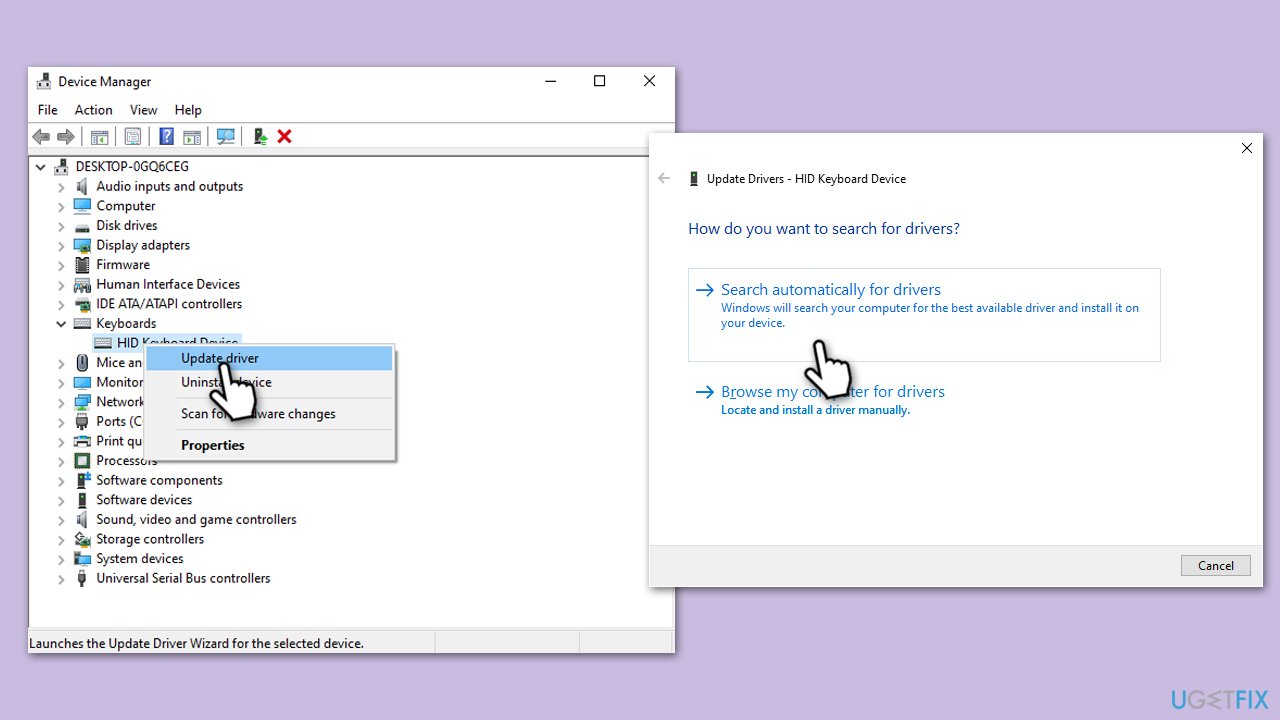
- Right-click on Start and pick Device Manager.
- Expand Keyboards section.
- Right-click on your keyboard and select Update driver.
- Pick Search automatically for drivers.
- Wait till the process is finished and then restart your computer.
- If Windows fails to find new drivers, you can either download them from the Logitech website or rely on an automatic driver updater such as [rev id="DriverFix"].
Fix 4. Use keyboard shortcut to enable backlight
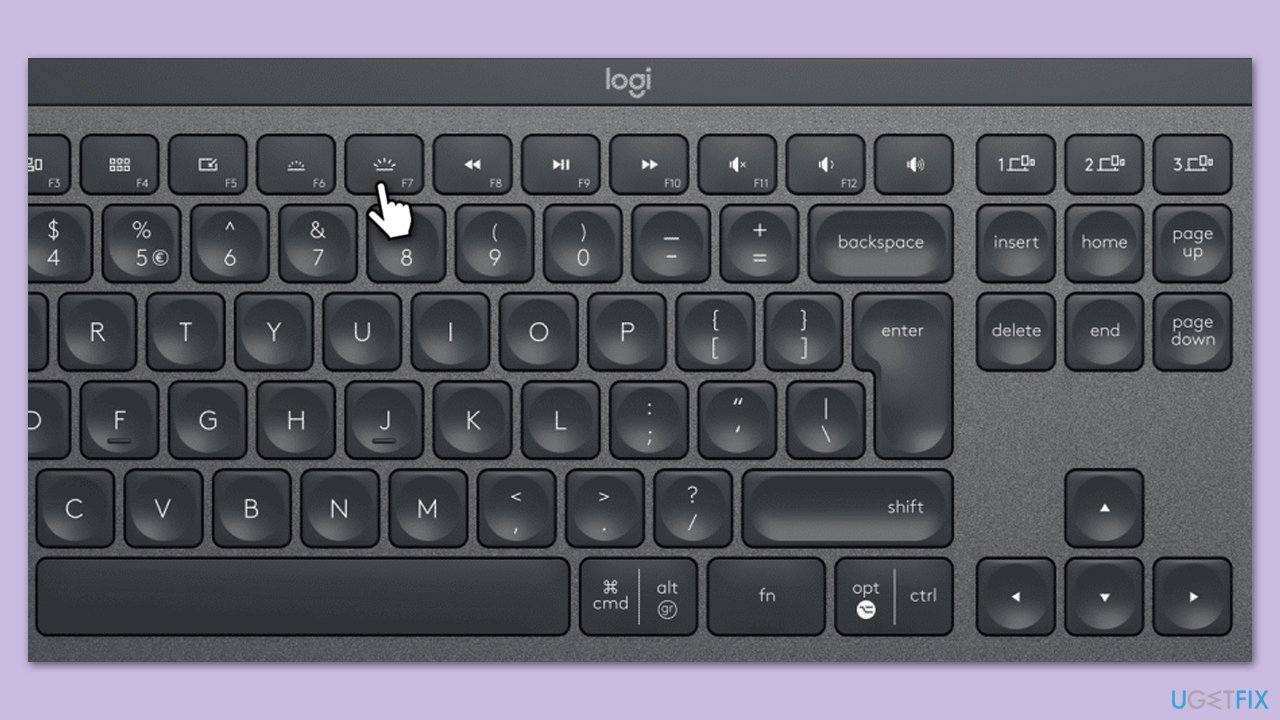
Logitech keyboards often have built-in shortcuts to enable or disable the backlight. To use this shortcut, you need to find a special key that's marked with a sun icon with rays. It can be on different buttons such as F7 or simple numeral keys. Note that on laptops you might have to press Fn + shortcut button for the backlight to be enabled.
Fix 5. Check configuration settings in Logitech software
Your Logitech keyboard may have specific configuration settings in Logitech's software. Follow these steps:
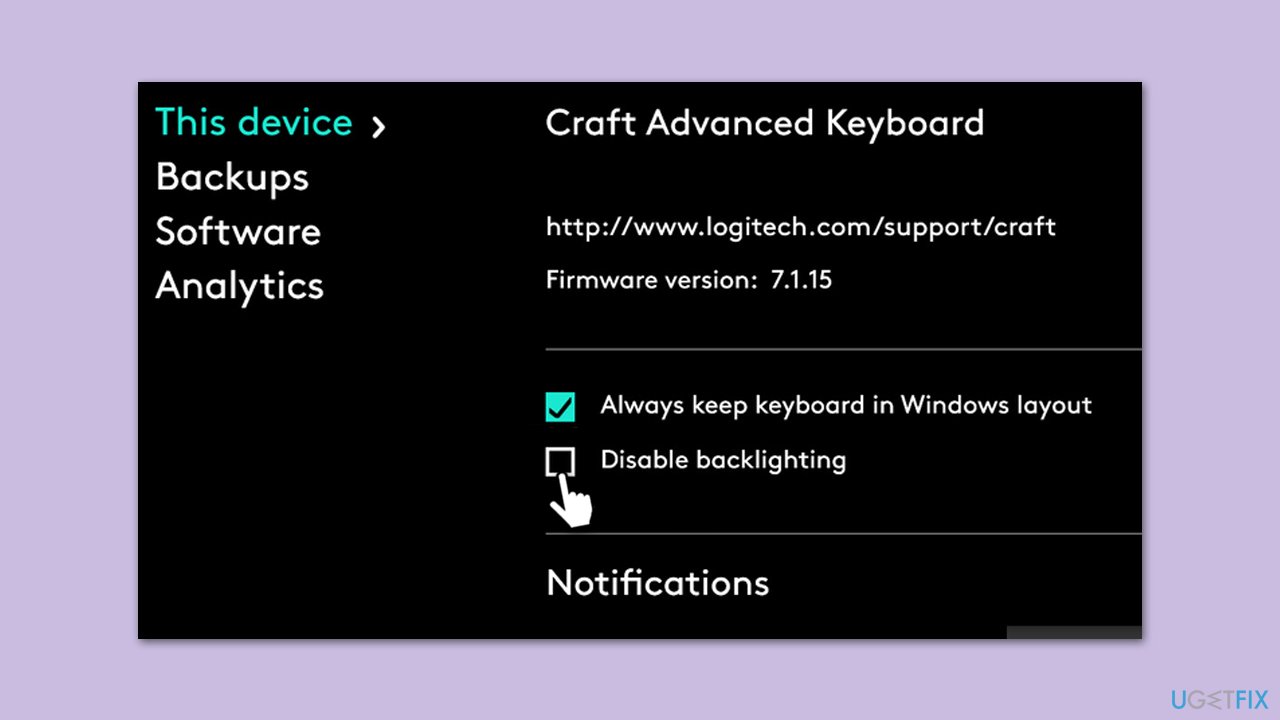
- Open the Logitech software on your computer (usually Logitech Options or Logitech G Hub).
- Locate the settings related to your keyboard's backlight.
- Ensure that the backlight is enabled and configured as desired.
- Save any changes made in the software.
Fix 6. Check your hardware
Sometimes, the issue may be hardware-related. Check your keyboard for any physical problems:
- Ensure the keyboard is connected securely to your computer.
- Examine the USB or wireless receiver for any damage.
- Test the keyboard on another computer, if possible, to rule out hardware issues.
- Consider cleaning your keyboard if there is any debris or dirt obstructing the backlight.
Fix 7. Update firmware
Updating the firmware on your Logitech keyboard can help address various issues, including backlight problems. Firmware is the software that controls the keyboard's functionality. To update it, follow these steps:
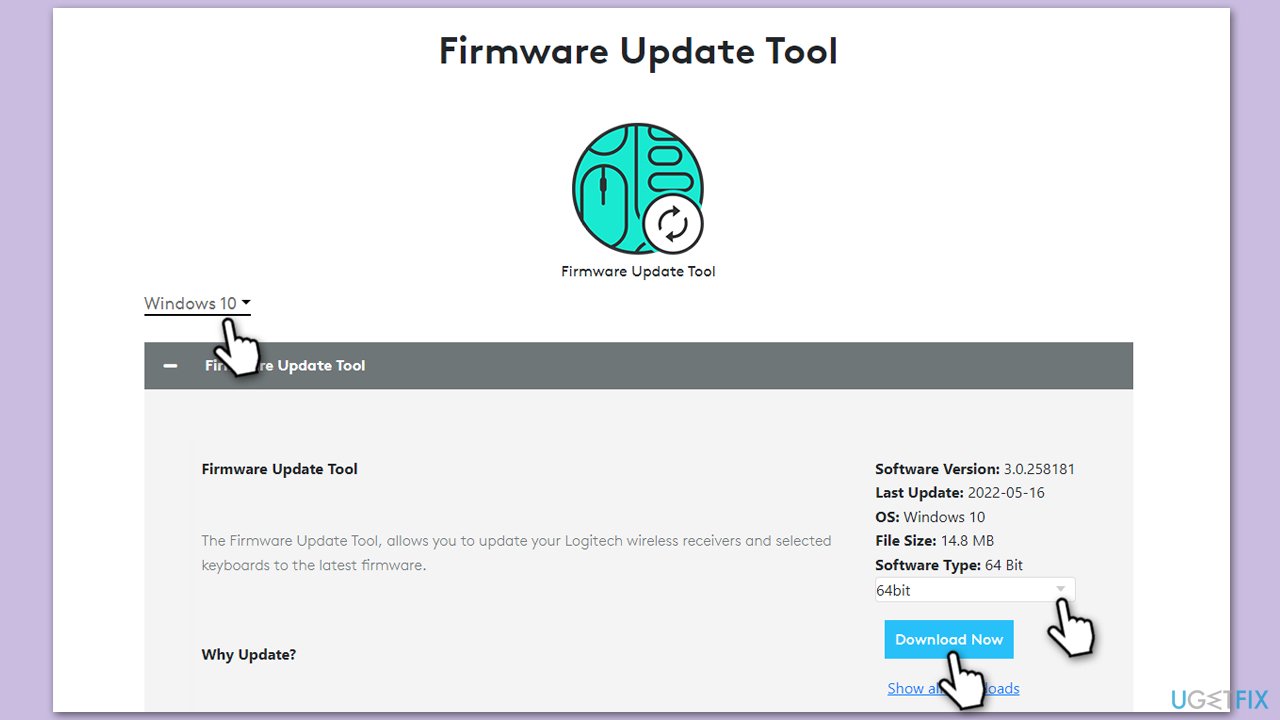
- Open your browser and navigate to the official Logitech website for firmware.
- At the top left, select your operating system version.
- Select the correct architecture (32-bit or 64-bit) from the drop-down menu.
- Click Download now.
- Once done, launch the installer and use the on-screen instructions to install the latest firmware.
Bottom line
To fix the Logitech keyboard backlight issue, you can run the Windows troubleshooter, update the drivers, enable the backlight via a shortcut, and check for firmware updates. If these steps do not resolve the problem, consider seeking professional assistance or consulting Logitech's official support resources.
Frequently asked questions
Ensure that the keyboard is properly connected to your computer and that the backlight feature is enabled in the Logitech Options software.
You can reset your Logitech keyboard settings by uninstalling the Logitech Options software, restarting your computer, and then reinstalling the software.
Yes, certain Windows updates can cause compatibility issues, so make sure your system is updated to the latest version and check for any known issues with Logitech devices.




Report an issue
What's wrong with this guide? We review every report and update or remove content.
Report received — thank you. We'll review and fix it.
You need a free account to submit a report.
Be the first to comment