How to fix
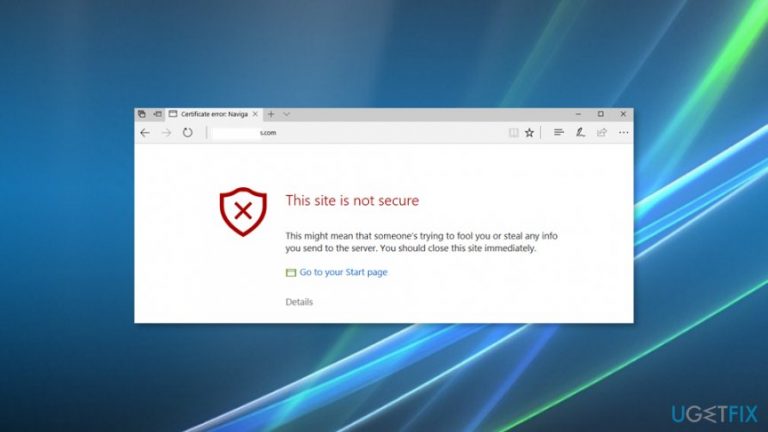
“This site is not secure” pop-up with an error code DLG_FLAGS_SEC_CERT_CN_INVALID
on Windows
Resolve the "This site is not secure" error (DLG_FLAGS_SEC_CERT_CN_INVALID) on Windows 10 and 11 effortlessly. Expert-tested solutions await!

What causes How to Fix “This site is not secure” pop-up with an error code DLG_FLAGS_SEC_CERT_CN_INVALID?
- Browser’s cache-related problems
- Problems with website’s security certificate
- Missing trusted root certificate for the Certification Authority (CA)
- Website's security certificate installed incorrectly
- Website's security certificate has expired
Repairs Windows system files, removes malware, and restores a clean OS state — without reinstalling.
Hi, all. Starting from yesterday morning, I‘ve started receiving an error message saying "This site is not secure." I would understand this message and leave the page aside if I wouldn‘t have been visiting it for ages. I‘m attaching a screenshot below. Please help.
"This site is not secure" is an error message that might pop up when browsing the web with Microsoft Edge, Google Chrome or Mozilla Firefox browsers. It seems that the error mostly bothers Windows 10 users. However, reports about this issue are reported by older OS versions users.
"This site is not secure" error in a technical language is named as DLG_FLAGS_INVALID_CA or DLG_FLAGS_SEC_CERT_CN_INVALID. It occurs when people are trying to open certain websites. If the safety of blocked website is questionable, we would strongly recommend you to avoid visiting it.
If, however, you have been visiting the website earlier and your web browser did not block it, you may proceed if the "This site is not secure" error message contains a Go on to the website (Not Recommended) button. In this case, there are several reasons why this error might show up, such as:
- browser’s cache-related problems;
- problems with website’s security certificate;
- missing he trusted root certificate for the Certification Authority (CA) on the site.
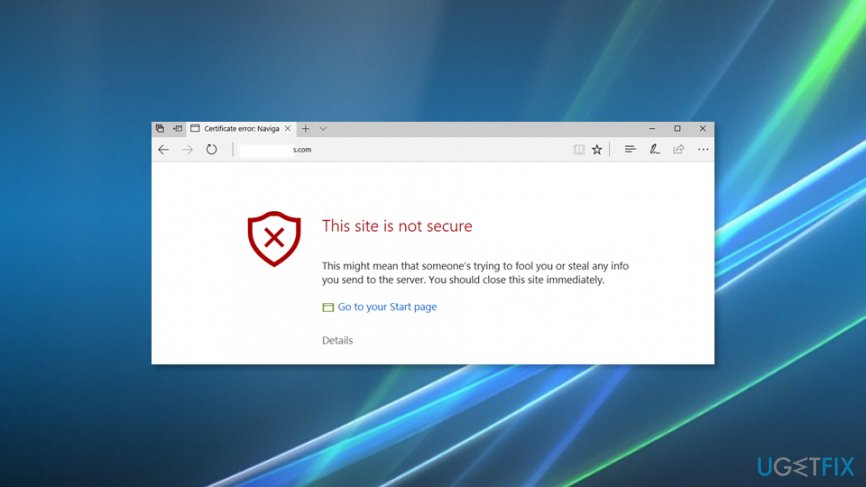
If the "This site is not secure" pop-up or DLG_FLAGS_SEC_CERT_CN_INVALID error is related to browser’s cache, cleaning it and resetting browser’s settings should help. However, usually, the culprit of the issue is related to the website‘s security certificate, which has either been installed incorrectly or has expired.
Besides, the trusted root certificate for the Certification Authority (CA)[ref en-1] is missing on the site that you attempt accessing. Last, but not least, if you receive such and similar alerts on Chrome, you should restrain from visiting the blocked website because it may contain malicious ads,[ref en-3] links, and codes.
Fixing DLG_FLAGS_SEC_CERT_CN_INV error
As Chrome developers announced the last September,[ref en-2] the browser will start displaying "Not Secure" warnings to prevent people from accessing pages that contain password and credit card input fields. However, if this error continues bothering you without a reason, you should try performing these tasks:
Here is a video with information about eliminating this problem:
[youtube lUeagnxGYAU]
Fix 1. Clear browser's cache
Before modifying important system‘s settings, try to fix "This site is not secure" error by clearing web browser cache clogs, deleting browsing history and reopening it.
- If you are currently seeing the "There is a problem with this website’s security certificate" pop-up, close the current tab and the web browser that you are using;
- Open Google Chrome and open its Menu;
- Open More Tools and click History;
- Select Clear Browsing Data.
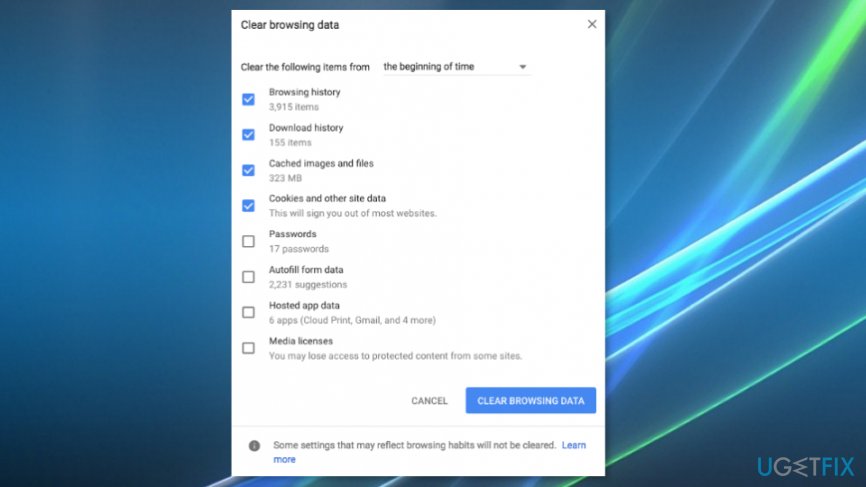
Clear browsing date to fix this site is not secure error
The names of the options are more or less similar on other websites. The option names may slightly differ, but you’ll easily find them on Firefox, Edge or IE with our instructions. Thus, make sure to delete browsing data on the affected one. After that, reset your web browser’s default settings.
If these basic steps did not help, then you should contact the owner or manager of the website that is blocked by the "This site is not secure" error and wait for his/her response. Before that, we would recommend trying the following fixes:
Fix 2. Install missing certificates
When the "This site is not secure" pop-up shows up, click on Continue to this website (not recommended) option at the very bottom of it.
- Select Certificate Error option next to the red Address Bar;
- Click View Certificates on the information window.
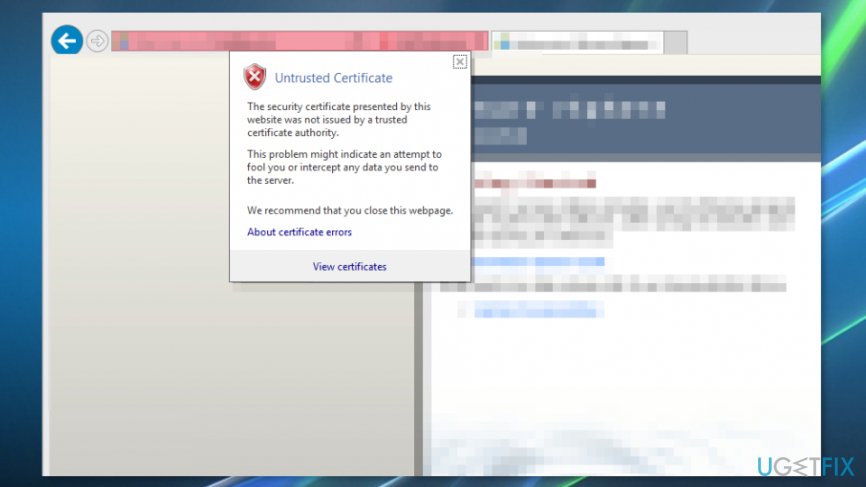
Install missing certificates - Select Install Certificate and follow the on-screen instructions;
- Click Yes on the dialog to proceed.
IMPORTANT: manual installation of certificates is NOT recommended on the websites with unknown or poor reputation.
Fix 3. Disable the “Warn about certificate address mismatch” option
The error related to certificates and site‘s security may be triggered by the “Warn about certificate address mismatch” feature. To check if it‘s enabled, please perform the following steps:
- Right-click on Windows key and select Contol Panel;
- Open Internet Options and click Advanced tab at the top;
- Find Security section and click on it;
- Look for the "Warn about certificate address mismatch“ option;
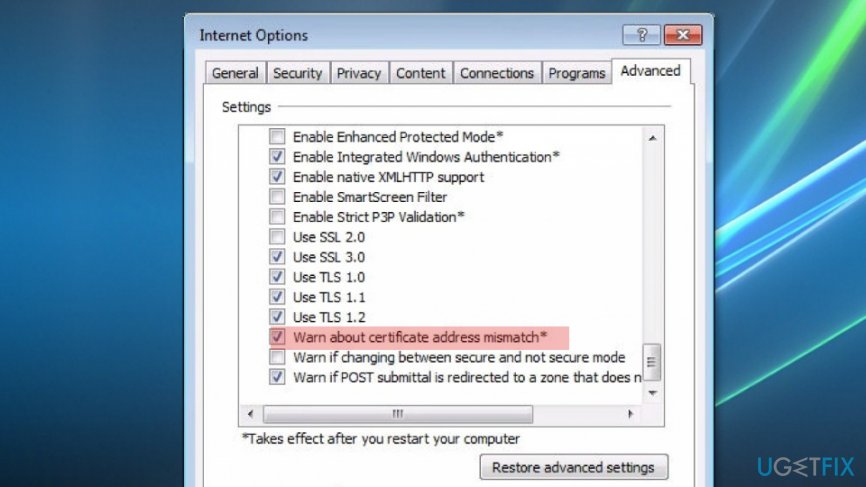
Disable warn about certificate address mismatch option - If a box right beside it is checked with a tick, unmark it to disable the option;
- Click Apply and OK to save the changes and close everything.
To ensure system's security even when accidentally landing on a compromised website, install a powerful anti-malware tool, say [d1], and keep it up-to-date.
Bottom line
To fix the DLG_FLAGS_SEC_CERT_CN_INVALID error, you can clean your browser's cache and reset its settings. If the issue persists, it may be due to the website's security certificate being incorrectly installed or expired. If none of these solutions work, consider avoiding the blocked website as it may contain malicious content.
Frequently asked questions
This error usually occurs when the website's SSL certificate does not match its domain name, indicating a potential security risk. It can also be triggered by incorrect system date and time settings on your Windows 10 device.
To fix this error in Windows 11, check your date and time settings, clear your browser cache, and ensure that your browser is up-to-date. If the issue persists, consider trying a different browser or disabling security software temporarily to see if it affects the connection.
Yes, you can adjust the security settings in your browser to allow access to the site, but be cautious as this may expose you to security risks. Additionally, ensure that TLS settings are enabled in your browser settings on Windows 10 or Windows 11.




Report an issue
What's wrong with this guide? We review every report and update or remove content.
Report received — thank you. We'll review and fix it.
You need a free account to submit a report.
Be the first to comment